
How StaffWeaver works
Every tool in the editor, what it does, and how to reach it. If you are already in the editor, the ? at the foot of the note palette brings you back here.
Starting a score
Everything begins on your scores page. A new score can start from a whole ensemble or from a single staff, and you can change your mind afterwards either way.
- Start from an ensemble
- Pick Concert Band, Marching Band, Jazz Band, Orchestra, or an SATB, SSA or SAB choir, and the whole group loads in that ensemble’s own score order, already bracketed by section. Count steppers let you add or remove parts before the score is created.
- Or build it up yourself
- Choose instruments one at a time from a catalog grouped by family. You can rename, reorder, add and remove parts at any point afterwards.
- Choir voicings are real voices
- Soprano, Alto, Tenor and Bass parts behave correctly: the tenor line reads treble and sounds an octave below, and the bass line reads bass clef.
- Your work saves itself
- Scores save to your account. If you lose connection, edits keep going into an offline draft and sync when you reconnect — the editor tells you when a draft is waiting rather than resolving it silently.
Entering notes
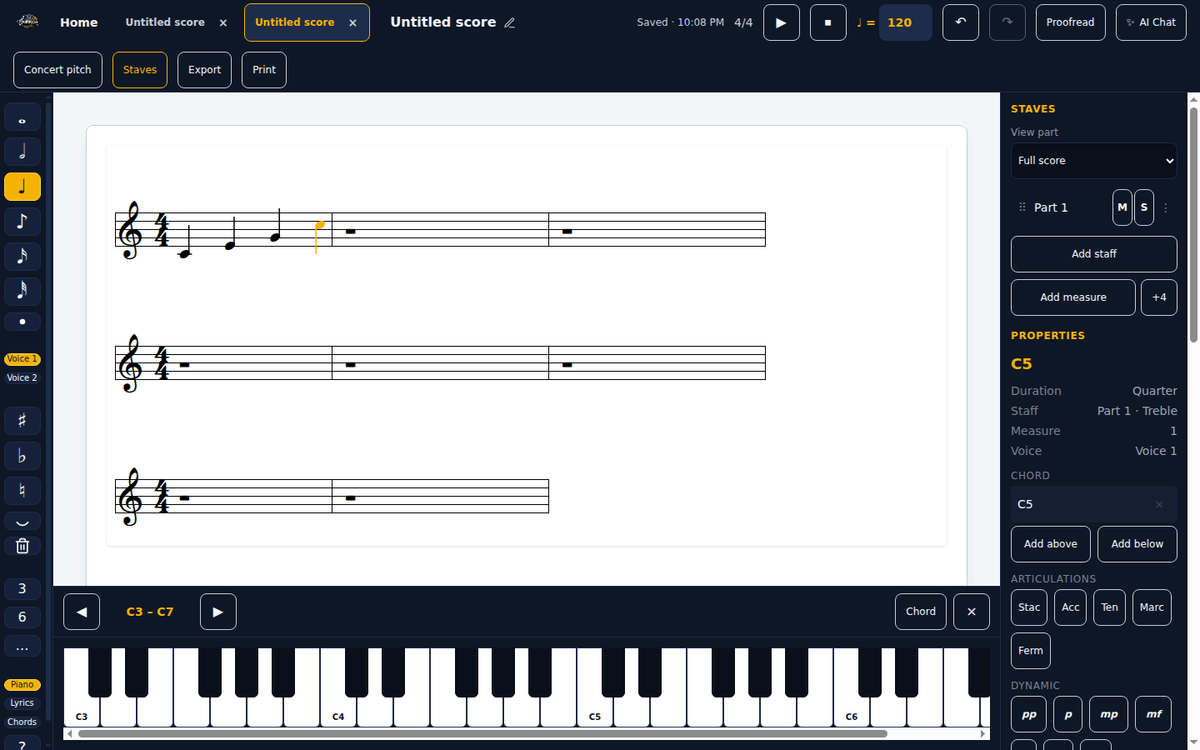
The narrow strip down the left of the editor is the note palette. Pick a duration there, then place notes on the staff. Everything in the palette is a toggle: what you picked stays picked until you pick something else.
- Place a note
- Tap or click the staff where you want it. On a tablet, drag from the palette onto the staff. The note goes in at the duration currently selected.
- Rests are automatic
- Rests fill automatically — place notes, and StaffWeaver keeps every measure complete.
- Or type it
- Letters A to G enter that pitch straight from the keyboard, and the digits pick the duration — 7 whole, 6 half, 5 quarter, and down. Each letter lands in the octave nearest the note before it, the way it does in every other notation program: after a G, C is the C above. A period adds the dot, R enters a rest, the arrow keys move between notes and transpose them, and T ties — the full set, with the Mac keys, is under Keyboard shortcuts below.
- The piano drawer
- The Piano input button opens a slide-up keyboard. Tap keys to enter pitches, shift octaves, and switch on chord mode to build a chord before committing it. Each key you press sounds as you press it. On a percussion staff the same button opens drum pads instead — see Drums and percussion below.
- Ties and dots
- The augmentation dot extends the selected note by half its value again. Tie to next note joins two notes of the same pitch into one sounding note.
- Tuplets
- Triplet and Sextuplet are one tap. Custom opens an actual-against-normal entry — “7 in the space of 4” and so on — and Remove tuplet puts the passage back.

Note durations in the palette
- Whole
- Half
- Quarter
- Eighth
- Sixteenth
- Thirty-second
Accidentals
- Sharp
- Flat
- Natural
Tuplet shortcuts
- Triplet — 3 in the space of 2
- Sextuplet — 6 in the space of 4
Shaping a note
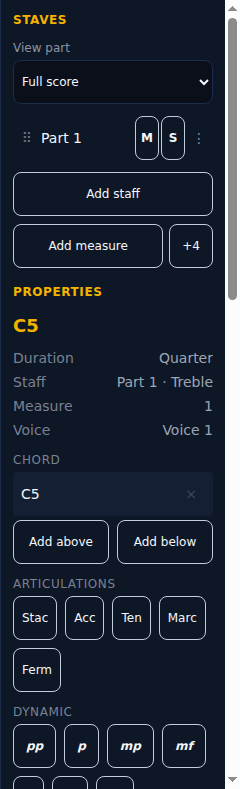
Select a note and the properties panel on the right applies to it. Articulations stack; a dynamic replaces whatever was there.
- Articulations
- These are multi-select — a note can be both staccato and accented. Tapping a pressed one turns it off.
- Dynamics
- A note carries one dynamic. Tapping a different one replaces it, and tapping the one already set clears it.
- Hairpins
- Crescendo and diminuendo spans are set here, and they are not decoration: playback follows them.
- Accidentals
- Sharp, flat and natural apply to the selected note. The key signature is handled per measure, not per note.
Articulations
- Staccato
- Accent
- Tenuto
- Marcato
- Fermata
Dynamics
- pp
- p
- mp
- mf
- f
- ff
- sf
Measures, keys and repeats
Measure-level settings live in the same right-hand panel, applied to the measure containing the selection.
- Key signature
- Any signature around the circle of fifths, from seven flats to seven sharps. Transposing instruments get their own correctly transposed signature automatically.
- Barlines
- Plain, double, final, and start and end repeats.
- Endings
- First- and second-ending brackets over a repeated section.
- Navigation marks
- D.S., D.C., Coda, Segno and Fine. These are followed during playback, so what you hear is the route a player would actually take.
Lyrics and chord symbols
Both are typed rather than placed, and both appear as you type rather than after you finish.
- Lyrics
- Turn on lyrics entry and type. A space moves to the next note; a hyphen splits a word across notes and draws the hyphen between them; an underscore extends a syllable with a melisma line. Escape leaves lyrics mode.
- Chord symbols
- Chord entry accepts what you would write by hand — Cmaj7, F#m7b5, Bb/D — and places the symbol above the staff on the part that owns it.
- They make room for themselves
- Lyrics push ledger lines and staff spacing out of the way rather than colliding with them, and the lane is reserved while you type so the preview does not jump.
Drums and percussion
A percussion staff is a staff whose notes are drums rather than pitches: each line and space names an instrument, and the part’s percussion map says which. Everything else — durations, rests, voices, ties, dynamics, undo — works exactly as it does on any other staff.
- Add a drum staff
- Pick Drum Set, Snare Drum, Tenor Drums, Bass Drum or Cymbals when you create a score or add a part, and the staff arrives on the percussion clef with the right map already chosen. The Marching Band group loads its battery as those named parts. Any existing staff can be switched to the percussion clef from the staves rail — its notes stay where they are on the page and become strokes.
- The drum pads
- On a percussion staff the Piano input button opens drum pads instead of a keyboard: one pad per drum in the part’s map — snare, bass drum, hi-hat and so on — each placing a stroke of the selected duration where the next note would go, with the notehead that drum is written with. Chord mode adds strokes played together. Each pad sounds as you tap it.
- Or type it
- The letters A to G enter drums on a drum staff: each letter is the drum written on that letter’s line or space, and every pad shows its key. The digits, the dot, R for a rest and the rest of the shortcuts are unchanged.
- Noteheads and rolls
- Select a stroke and the properties panel offers its head — normal, x or diamond — for the cases the map does not cover, and a roll of one, two or three slashes. Playback re-strikes a roll at its written subdivision. The panel names the drum, not a pitch, and offers no accidentals: a position has none.
- Percussion maps
- The staves rail lets you choose the map a drum part reads by — Drum set (the MuseScore and Finale convention), Band drums (the published-march convention, where the bass drum sits on the second space), or a single-section map for a snare line, tenor drums, bass line or cymbals. A position the map does not name draws but plays nothing, never the wrong drum.
- In and out
- Drum staves import from and export to MusicXML with their positions, noteheads, rolls and instrument sounds, so a drum-set part from MuseScore opens looking and sounding right, and yours does there.
Parts and playback
The staves rail lists every part in the score. It is where a score becomes a set of parts.
- Per-part control
- Mute and solo each part, change its instrument, reorder parts by dragging, and open a part on its own.
- Written or concert pitch
- Each part renders and prints in the pitch its player actually reads. One toggle switches the whole score to concert pitch for the podium.
- Playback
- Space plays and pauses. Tempo is set in the header in quarter notes per minute. Playback follows dynamics, hairpins, repeats and navigation marks.
- Printing
- Printing goes through your browser’s print dialog, using the same layout you see: no blank first page, and no system split across a page break. Single parts print on their own pages.
Proofreading
Two different things share a panel, and only one of them costs anything.
- Structural checks are free
- Repeats, endings and D.S./D.C./Coda/Fine navigation are checked for problems that would break a performance — a repeat with nowhere to go, an ending with no repeat. Every finding clicks through to the bar it is about. This costs no credits, on any plan.
- The AI second opinion costs credits
- Asking for an AI review looks at voice leading, instrument range, note spelling and engraving. Its findings are opinions, not rules — a suggestion here can be confidently wrong, so check it against the score before you act on it. It runs only when you ask for it, and it is charged in AI credits. If the model fails, the credits are returned.
- Size limits
- AI proofreading takes scores up to 24 parts and 200 measures. Past that it declines before charging you anything.
AI chat and scanning
Both run on AI credits. Neither is required to use the editor, and both tell you what they are about to cost.
- Write a score from a prompt
- AI Score Chat can create a whole score from a description — instrumentation, key, time signature and notes — and then keep editing it conversationally. It edits existing scores too.
- Scanning is a first draft, not a transcription
- Upload a PDF, PNG or JPEG and scanning produces an editable draft. Stated plainly: a mean F1 of 0.34 on real published lead sheets, and 0.825 pooled on our synthetic corpus. Treat it as a head start on retyping.
- Review Mode is where a scan becomes usable
- It puts the scan beside the original page and walks you through it measure by measure, with one-click fixes and per-measure AI assist. The repair loop is the point — a scan is not meant to be accepted as-is.
- Rights to what you scan
- Scanning reads whatever page you give it, and most published sheet music is copyrighted — photographing it does not change that. The rights are yours to hold: scan music you wrote, own, have permission to use, or that is in the public domain. See the Terms for the full statement.
- Credits
- Premium includes credits every month; anyone can buy a Cloud Pass subscription or a one-time pack. Composing, playback, printing, MusicXML import and export, and the structural Proofread checks never cost credits.
Getting music in and out
MusicXML is the way in and the way out, and it is free on every plan — your work is never locked in here.
- Import
- MusicXML files (.xml, .musicxml, and compressed .mxl) up to 5 MB. Part-group brackets and braces come across with the score.
- Export
- Export writes MusicXML (.musicxml or .mxl) in your browser, free and instantly. Before a download it names anything that particular score would lose in the format.
- What we do not export
- MusicXML only. There is no MIDI export, no audio export and no PDF export — for a PDF, print and choose your system’s save-as-PDF option.
- Tabs
- Several scores can be open at once along the top of the editor, and they survive a reload.
Keyboard shortcuts
The editor is fully keyboard operable — every palette tool, tab and panel control is reachable by Tab and activated with Enter or Space.
- A – G
- Enter a note of that pitch where the next note would go. The letter lands in the octave nearest the note you last entered or selected — so after a G, typing C gives the C above it, not the C below. With nothing selected yet, the note starts on the staff for that clef.
- A – G on a drum staff
- Enter the drum written on that letter’s line or space, with the right notehead. On the Drum set map: F bass drum, C snare drum, A floor tom, B low tom, D mid tom, E high tom, G closed hi-hat. Each pad in the drum pads drawer shows its key; a letter no drum is written on enters nothing and says so.
- 2 – 7
- Choose the duration the next note goes in at: 7 whole, 6 half, 5 quarter, 4 eighth, 3 sixteenth, 2 thirty-second. Each digit is half the value of the one above it, the same numbering MuseScore, Dorico, Noteflight and Flat.io use.
- ← / →
- Select the previous or next note in the voice, across barlines. With nothing selected, → selects the first note and ← the last. Rests are skipped.
- Home / End
- Jump to the first or last note of the measure the selected note is in.
- Ctrl / Cmd + Home / End
- Jump to the first or last note of the whole voice.
- ↑ / ↓
- Raise or lower the selected note — or every note of the selected chord — by a semitone. Sharps on the way up, flats on the way down, and the spelling the key signature already uses where it has one: in F major, A up a semitone is B♭.
- Ctrl / Cmd + ↑ / ↓
- Raise or lower the selected note or chord by an octave, keeping its spelling.
- Alt / Option + ↑ / ↓
- Move the selected note up or down one staff step, to the next natural — the same as the Nudge buttons in the properties panel.
- < / >
- Aim note entry at the previous or next measure, including an empty one. The arrow keys on their own move between notes and skip rests, so this is how you reach a bar you have not written in yet — the keyboard equivalent of clicking that measure. What you type next goes in there.
- .
- Toggle the augmentation dot for the next note you enter — the same toggle as the dot button in the palette. Type 5, then ., then C for a dotted quarter C.
- R
- Enter a rest of the active duration where the next note would go. The next note you type goes in after it. If the rest will not fit before the next note, the editor says so and enters nothing.
- T
- Tie the selected note to the next note of the same pitch. Press again to remove the tie.
- # / - / =
- Sharp, flat or natural on the selected note (# is Shift+3 on a US keyboard). The arrows above do most of this job too; these are for when you want a specific spelling.
- Any of the above while typing
- None of the keys above does anything while you are writing a lyric or a chord symbol, or while the cursor is in a text field such as the score title, a part name, the tempo or the AI chat box — there, a letter is just a letter, a period ends a sentence and an arrow moves the cursor. Holding Ctrl, Cmd or Alt leaves the key to your browser, apart from the combinations listed here. Ctrl / Cmd + S is the one exception: it saves from anywhere.
- Space
- Play or pause. Ignored while you are typing in a field, or when a button, tab or checkbox has focus — there, Space activates that control instead.
- Ctrl / Cmd + Z
- Undo.
- Ctrl / Cmd + Shift + Z
- Redo.
- Ctrl / Cmd + Y
- Redo, the Windows spelling of the same thing.
- Ctrl / Cmd + S
- Save now. The editor already saves as you go — this sends anything still pending straight away and lights the Saved indicator in the header to confirm. Works from inside the title field too, and never opens the browser's save-page dialog.
- Delete / Backspace
- Delete the selected note. The rest that replaces it keeps the measure complete.
- Escape
- Leave lyrics or chord entry and return to normal note editing; close the piano drawer.
Still stuck?
If something here does not match what you are seeing, that is a bug in one of the two and we would like to know. Otherwise, the fastest way to learn the editor is to open a score and put a few notes in it.